how to connect a projector to a laptop
How to Connect a Projector to a Laptop (Without the Headache)
If you’ve ever stood in front of a room full of people while your projector refuses to cooperate, you’re not alone. It happens all the time. The good news? In most cases, connecting a projector to a laptop is actually pretty simple once you know what to look for.
Whether you’re preparing for a corporate presentation, conference, a classroom lecture in a breakout room, or board meeting, here’s a straightforward guide to getting everything connected and working properly.
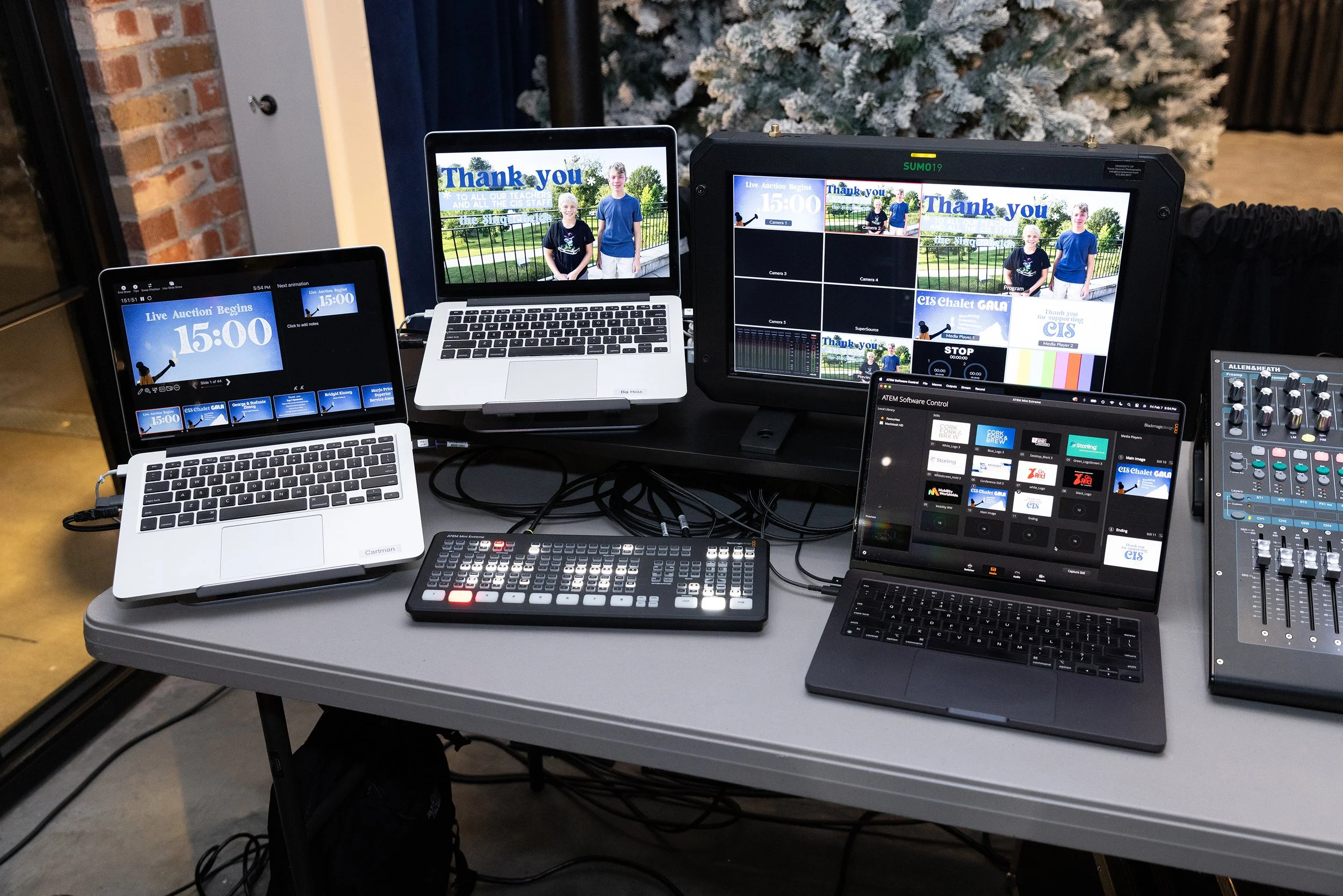
Step 1: Identify Your Laptop’s Video Output
The first thing you’ll want to do is look at the ports on your laptop. Most modern laptops will have one of the following:
HDMI (the most common and easiest option)
USB-C / Thunderbolt
Mini DisplayPort
DisplayPort
Older laptops may have VGA
If your laptop doesn’t have an HDMI port, you’ll likely need an adapter. For example:
USB-C to HDMI
Mini DisplayPort to HDMI
DisplayPort to HDMI
A quality adapter can make all the difference, especially when you’re presenting to an audience.
Step 2: Check the Projector’s Input Ports
Next, take a look at the back or side of the projector.
Most of the newer projectors use HDMI. It delivers both video and audio through a single cable and generally provides the best image quality.
Step 3: Connect the Cable
Once you’ve identified the correct ports:
Turn on the projector.
Connect the video cable between your laptop and the projector.
Select the correct input source on the projector (HDMI 1, HDMI 2, VGA, etc.).
If everything goes well, your laptop should automatically recognize the projector. If nothing happens after you’ve completed the first three steps, you could have a bad HDMI cable.
Step 4: Choose Your Display Mode
Most operating systems give you several display options.
Windows
Press Windows + P and choose:
Duplicate – Shows the same image on both screens.
Extend – Creates a second desktop (great for presenters).
Second Screen Only – Displays only on the projector.
Mac
Go to:
System Settings → Displays
From there, you can choose to:
Mirror Displays
Extend Displays
Adjust screen arrangement
For presentations, many professionals prefer Extend Displays because it keeps presenter notes on the laptop while the audience sees only the presentation.
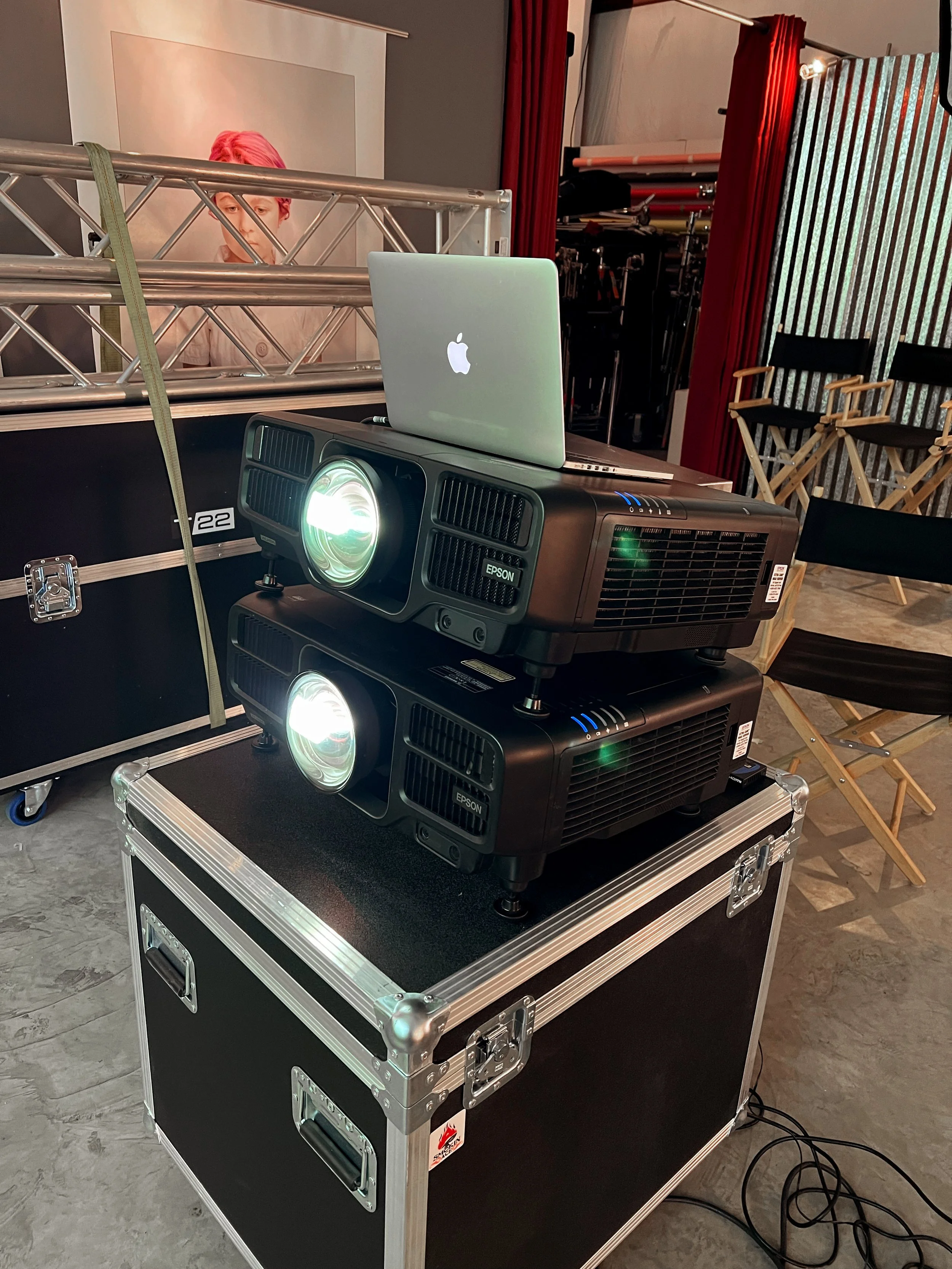
Step 5: Adjust Resolution (If Needed)
If the projected image looks blurry or stretched, your laptop may be outputting a resolution the projector doesn’t support well.
Most conference projectors work best at:
1920 × 1080 (Full HD)
1280 × 720 (HD)
Matching your laptop’s output to the projector’s native resolution usually produces the sharpest image.
Can You Connect a Projector Wirelessly?
Yes.
Many newer projectors support wireless connections through:
Built-in Wi-Fi
Wireless presentation systems
Apple AirPlay
Google Cast
Microsoft Wireless Display
Wireless setups are convenient, but for important meetings or live events, a wired HDMI connection is still the most reliable option.
Common Projector Connection Problems
Even experienced presenters occasionally run into issues. Here are a few quick fixes.
No Picture?
Make sure the projector is on the correct input.
Disconnect and reconnect the HDMI cable.
Restart the laptop.
Try another cable if available.
Laptop Doesn’t Detect the Projector?
Windows users can press Windows + P and select a display mode.
Mac users can open Displays and click Detect Displays if needed.
No Sound?
HDMI carries audio, but your computer may still be sending sound to its internal speakers.
Simply select the projector (or connected display) as the audio output device in your sound settings.
Poor Image Quality?
Check the projector’s focus ring.
Verify the output resolution.
Avoid inexpensive HDMI adapters if possible—they’re a common source of connection issues.
Pro Tips from an AV Professional
After producing hundreds of conferences and live events, here are a few habits that can save you a lot of stress:
Test everything before attendees arrive.
Carry an extra HDMI cable.
Bring common adapters for USB-C and DisplayPort laptops.
Turn off screen savers and automatic sleep mode before presenting.
Keep a backup copy of your presentation on a USB drive or in the cloud.
These simple steps can prevent many of the last-minute technical issues we see at events.
When It’s Time to Call in the Pros
Connecting a single projector to a laptop is usually straightforward. But once you start adding multiple projection screens, confidence monitors, switchers, video playback, livestreaming, or hybrid presentations, the setup becomes much more complex.
That’s where a professional AV production team can make all the difference. Proper planning, testing, and on-site support help ensure your presenters can focus on their message, not the technology.
Need Help With Your Next Presentation?
At T/22, we provide professional projector systems, presentation support, video production, top-tier audio services, and complete AV services for conferences, corporate meetings, fundraisers, and live events throughout Missouri. Some of the markets we serve most often are: Jefferson City, Columbia, Lake of the Ozarks, Kansas City, St. Louis and Branson Missouri. Whether you’re planning a small board meeting or a multi-day conference, we’re happy to help ensure everything runs smoothly.
Have questions about your next event? We’d love to help!